



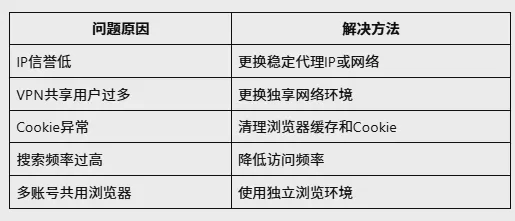
When Google shows the "unusual traffic detected" prompt, it is usually because the current access environment is abnormal, for example low IP address reputation, use of shared proxies or VPNs, excessively high access frequency in a short period, repeated browser environments and other such causes.
Common solutions include:
- Switch to a stable network environment or proxy IP;
- Clear browser cookies and cache;
- Reduce search access frequency over a short period;
- Check whether the current IP has any abnormal records;
- Avoid multiple accounts sharing the same browser environment;
- Use independent browser environments to manage different accounts.
If it is just an ordinary user searching, usually changing the network or waiting for a period of time will resolve it.
However, for cross-border sellers and overseas marketers, Google unusual traffic is often related to multi-account operation environments, and it is necessary to focus on checking whether there are associated risks among accounts, IPs, and browser environments.
Quick Solutions for Google Unusual Traffic
What Is Google's "Unusual Traffic Detected"?
When a user visits Google Search, if the page shows:
Unusual traffic from your computer network detected
This usually means that Google's automated risk control system considers the current access behavior to be different from that of a normal user.
Google is not concluding that the user has definitely violated any rules; instead, it asks the user to confirm via a CAPTCHA that the current visit is a real user action rather than a bot, automated program, or abnormal network behavior.
Common signs include:
- CAPTCHAs frequently appear on the search page;
- Search results cannot be viewed normally;
- Verification is required for every search;
- The verification page still appears repeatedly after changing keywords.
Why does Google detect abnormal traffic?
Google evaluates multiple factors together, including the network environment, IP quality, browser information, Cookie data, and user behavior. The following situations are most likely to trigger abnormal traffic verification.
1. Low IP address reputation
IP is an important factor in how Google assesses the access environment. If the current IP is shared by a large number of users, has a history of abnormal access, belongs to a public VPN node, or is frequently switched between countries and regions, Google may lower the trust score of that IP, thereby increasing the probability of triggering a CAPTCHA.
For example: the IP addresses of public VPN nodes are usually used simultaneously by a large number of users, and such IPs typically have lower trust scores in Google's risk control system. Different types of IPs differ in stability and historical reputation. When operating accounts over the long term, a stable, clean network environment is usually more important than frequently changing IPs. When multiple users simultaneously use the same proxy IP to access Google and perform large numbers of search operations, it is easy for the system to judge the access as abnormal.
2. Using a shared VPN or public proxy
Many free VPNs or shared proxies have the same problem: one IP address may be used by a large number of users at the same time. To Google, a large amount of different user behavior coming from the same network exit point increases its risk assessment.
Therefore, the following environments are more likely to trigger verification:
- Free VPNs;
- Public proxy nodes;
- Proxy IPs shared by many users;
- Frequently changing proxy regions.
3. Abnormal search behavior in a short period of time
Besides the network environment, Google also analyzes user behavior patterns. If a large number of searches, bulk keyword queries, or automated visits are performed consecutively within a short period, Google may determine that the access behavior is abnormal and trigger a CAPTCHA.
The following behaviors are likely to trigger verification:
- Searching a large number of keywords consecutively;
- Opening a large number of pages in a short time;
- Querying search results in bulk;
- Frequently refreshing pages.
For example, when cross-border sellers use Google to query competitor keywords, advertising data, and market trends in bulk, if the access frequency is too high, they may be identified as abnormal access.
4. Duplicate browser environment
Many users only focus on IP but ignore the browser environment. In fact, Google also identifies based on a combination of Cookie data, browser fingerprints, device information, and login status. If multiple accounts share the same Chrome browser, use the same Cookie environment, and frequently switch accounts in the same browser, the risk of environment association will increase significantly, raising the verification frequency.
How to solve Google's abnormal traffic CAPTCHA?
Method One: Switch to a stable network environment
If the current IP frequently triggers CAPTCHA, you can try:
- Switch to a stable proxy IP;
- Avoid network sharing among multiple people;
- Do not frequently switch country nodes.
When operating overseas accounts over the long term, it is recommended to maintain a stable network environment and not frequently switch extensively between US IPs, European IPs, and Asian IPs; such changes may increase the probability of Google verification.
Method Two: Clear browser Cookies and cache
Google determines the current environment based on historical visit data. If the browser has stored records of unusual visits, you can try clearing the cache.
Chrome browser operation path:
Open Chrome → Settings → Privacy and security → Delete browsing data
Select:
- Cookies and other site data;
- Cached images and files.
Time range selection:All time
Click:Delete data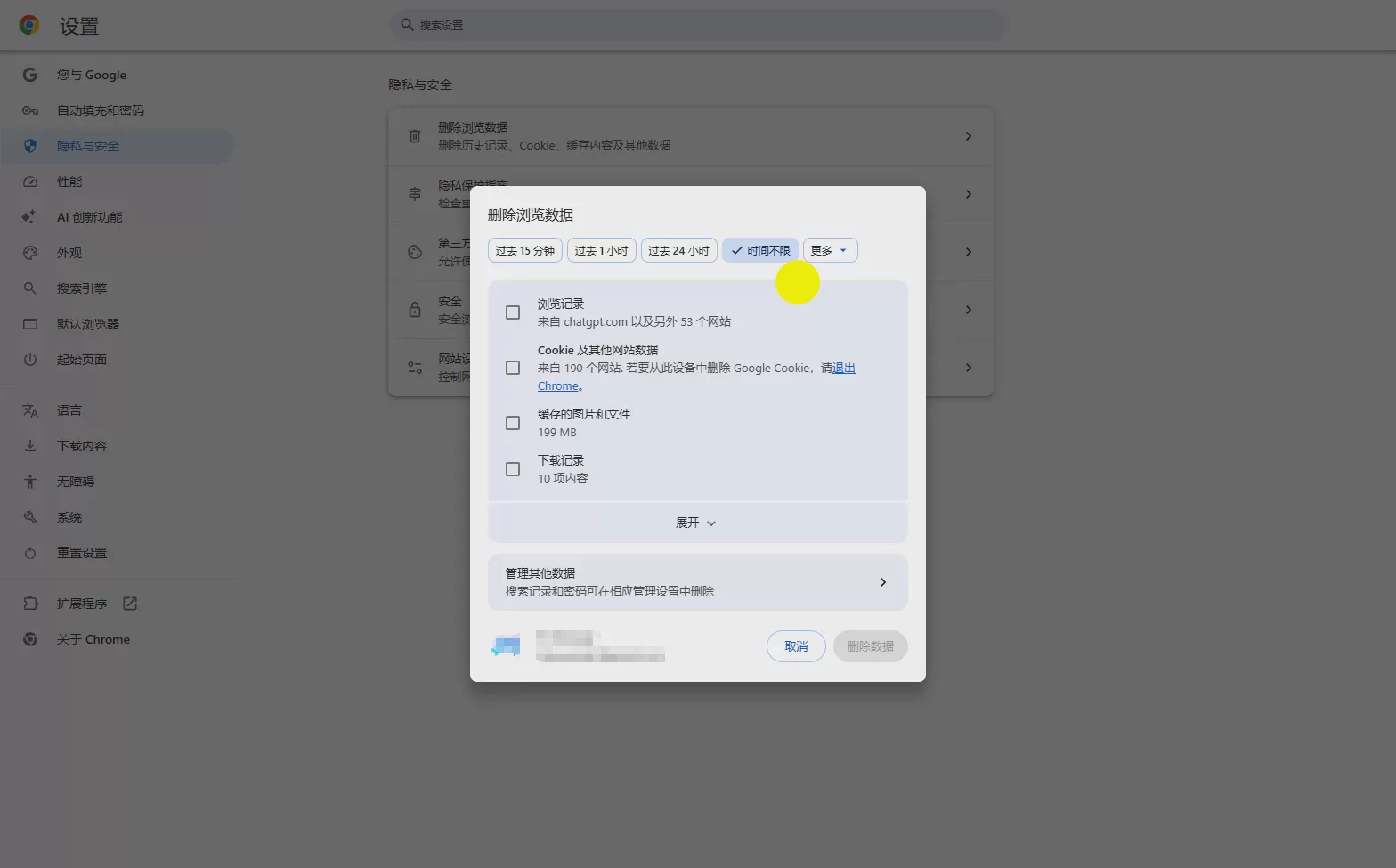
After completion:
- Close all browser windows;
- Wait 30 seconds;
- Reopen the browser and visit Google to see whether the CAPTCHA still appears.
Method Three: Reduce Access Frequency
If CAPTCHAs appear frequently, you can temporarily stop high-frequency operations. Avoid searching for a large number of keywords in succession, opening search results in bulk, and automated repeated queries.
After recovery, it is recommended to operate according to normal user habits: search keywords → browse pages → stay → click results.
Method Four: Check the Quality of the Current Proxy IP
Many CAPTCHA issues are not account problems but proxy quality problems. When checking a proxy, you can pay attention to:
- Whether the IP's region is correct;
- Whether it is a shared IP;
- whether it changes frequently;
- whether it is used by a large number of users.
A high-quality, stable network environment is usually more important than frequently changing IPs.
Method Five: Create independent browsing environments for different accounts
For ordinary users, changing the network usually solves the problem. But for cross-border sellers, what really needs to be addressed is whether multiple accounts share the same browsing environment.
For example, logging into an Amazon account, an Ozon account, a Google Ads account, and a Shopify account at the same time in one Chrome browser can easily cause Cookie mixing, confused login states, and duplicated browser environments.
A more reasonable approach is to create independent environments for different accounts, managing Cookie, browser fingerprints, network proxies, and login states separately.
Google Abnormal Traffic Troubleshooting Process
If Google keeps showing CAPTCHAs, you can troubleshoot in the following order:
First step: check the network environment
Confirm whether the current IP region is normal, whether a shared proxy is being used, and whether the IP is switched frequently. If an account is operated over the long term, it is recommended to maintain a fixed and stable network environment.
The second step: check the browser environment
Confirm whether multiple accounts share the same browser, whether you frequently log out and then switch accounts, and whether cookies are mixed. If there are multiple overseas accounts, it is recommended to isolate the browser environment.
Third step: Adjust access behavior
Reduce high-frequency searches, bulk queries, and automated access so that access behavior is closer to real user operations.
How to avoid Google triggering abnormal traffic again?
To reduce the frequency of CAPTCHAs, you can do the following:
- Keep a stable IP: Do not frequently change country/region, network lines, or proxy nodes. A stable environment is more important than frequent switching.
- Manage different accounts separately: It is recommended to manage cookies, login status, and browser environments separately for different accounts to avoid multiple accounts leaving the same environment characteristics.
- Avoid abnormal operational behavior: Reduce large numbers of searches in a short period, bulk page visits, and repetitive automated operations.
- Regularly clear browser data: Regularly clear cookies and cache to prevent historical abnormal records from continuing to affect access.
How can cross-border sellers reduce the frequency of Google unusual verification?
For ordinary users, Google unusual traffic can usually be resolved by switching networks and clearing cookies.
However, for cross-border sellers and multi-account operation teams, the problem often stems from long-term sharing of the same browser environment. For example, multiple accounts logging into the same Chrome, multiple stores sharing cookies, accounts from different countries using the same browser configuration, and frequently switching accounts and network environments. In such cases, merely changing the IP cannot completely solve the environment association problem.
A more reasonable approach is to create independent browsing environments for different accounts and use them to separately manage browser fingerprints, cookie data, login status, and proxy networks.
P1 fingerprint browser supports creating multiple independent browser environments, helping cross-border sellers manage overseas accounts such as Amazon, Ozon, and Google Ads, and reducing environment confusion in multi-account operations.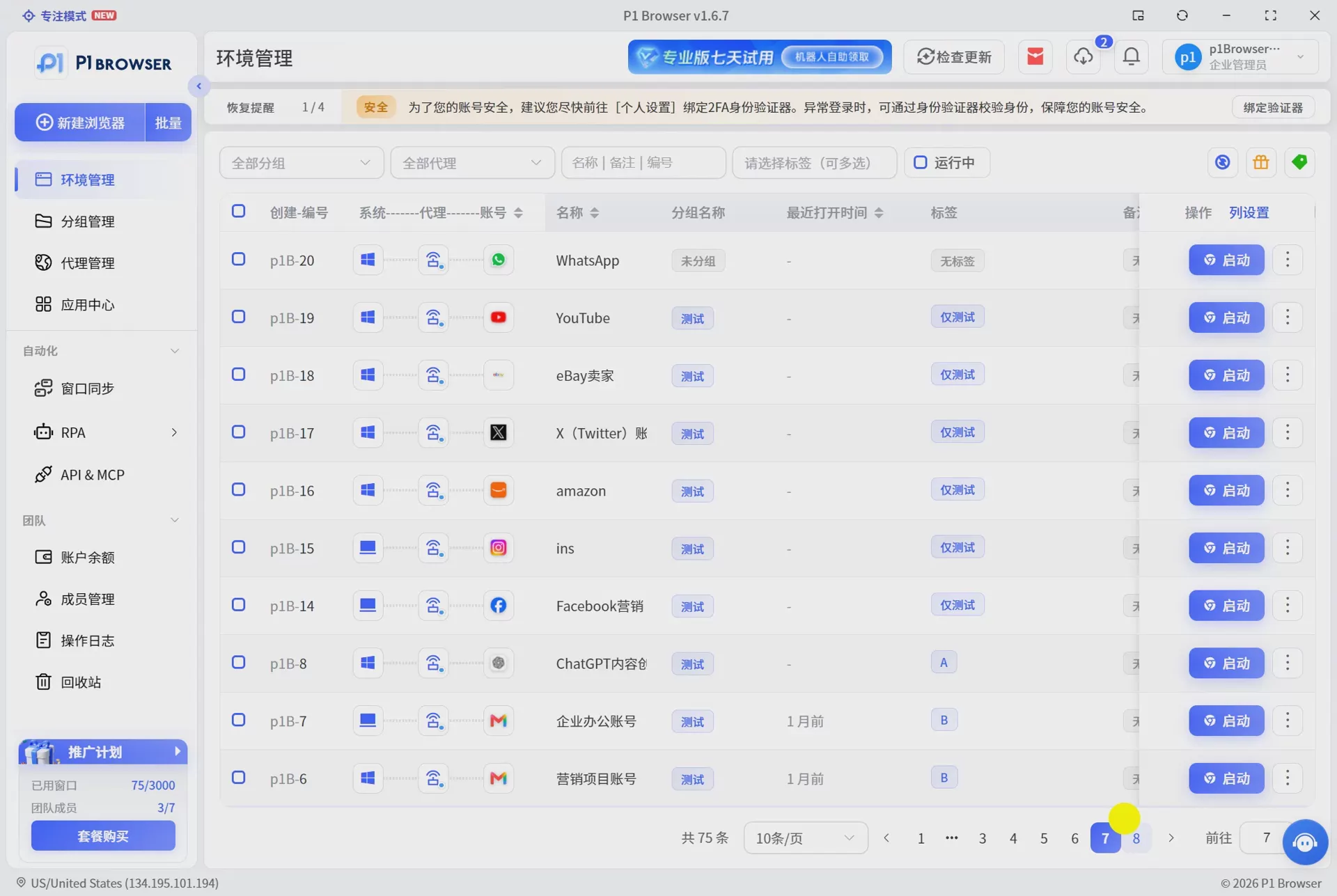
Frequently Asked Questions FAQ
Will Google unusual traffic alerts affect accounts?
Under normal circumstances, a single occurrence of an unusual traffic verification code will not directly lead to account suspension. However, if you use an abnormal network environment for a long time, or continuously make a large number of abnormal visits, it may cause Google to increase verification frequency or even restrict access from the current network. It is recommended to check IP quality, browser environment, and operation methods promptly.
Why do Google verification codes still appear after changing the IP?
Possible reasons include:
- The browser cookies still store old environment information;
- The new IP itself has low reputation (such as a data center IP);
- The browser fingerprint has not changed, so Google still identifies it as the same device environment;
- The access behavior is still abnormal.
It is recommended to check the network environment, browser environment, and operating habits at the same time.
Will a VPN cause Google verification codes?
It may. This is especially true for shared VPN nodes, because a large number of users share the same IP, making it more likely to trigger Google's risk detection.
How long does it take for Google abnormal traffic to recover?
In general, after access behavior returns to normal and you switch to a stable network environment, the verification frequency will decrease. The specific time depends on the IP status and access behavior.
Can a fingerprint browser completely avoid Google verification codes?
It cannot be guaranteed to completely avoid them. Google verification codes are determined by multiple factors, including IP quality, user behavior, and browser environment. The main function of a fingerprint browser is to help users create independent browsing environments and reduce the problem of duplicate environments across multiple accounts.
Why are cross-border sellers more likely to encounter Google abnormal traffic?
Because cross-border sellers usually need to query large amounts of market data, manage multiple platform accounts, use network environments in different countries, and log in to multiple overseas services. Compared with ordinary users, these operations are more likely to trigger Google verification.
Summary
When Google detects abnormal traffic, it is usually not caused by a single reason, but by IP environment, access behavior, and browser environment combined influence of multiple factors.
Ordinary users can solve it by switching networks, clearing cookies, and reducing access frequency.
For cross-border sellers, it is more important to establish a stable and independent account operating environment. Managing different accounts through independent browser environments can reduce operational problems caused by environmental confusion and improve the long-term operational stability of overseas accounts.
For sellers who need to manage accounts on multiple overseas platforms such as Amazon, Ozon, and Google Ads, P1 fingerprint browser can be used to create independent browsing environments, so that different accounts have independent cookies, browser fingerprints, and network configurations, making it more efficient to manage multi-platform operating environments.