


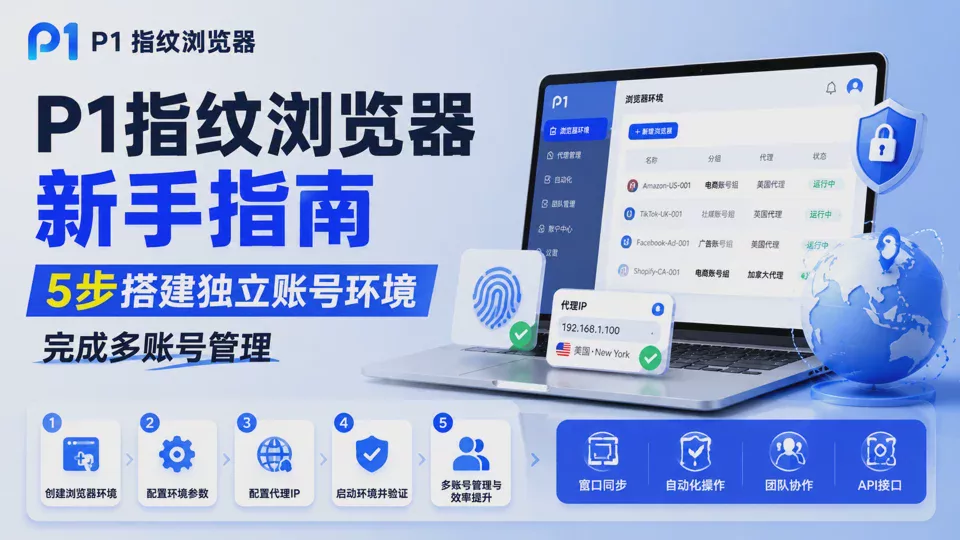
When operating multiple overseas accounts, many anomalies are not caused by account operation issues, but by a failure to properly manage account operating environments independently.
For example:
- An Amazon store has just started operating and does not yet have stable orders, but receives an association risk alert;
- Multiple TikTok accounts log in from the same computer, and some accounts trigger abnormal verification;
- Team members manage accounts together, and the browser environments are disorganized, resulting in repeated logins and frequent verification.
Websites not only identify account information, but also comprehensively assess environmental data such as browser fingerprints, cookies, device parameters, and network IPs.
If multiple accounts share the same set of environment parameters, the platform may use this environmental information to comprehensively assess the association between accounts.
Therefore, for users who need to operate multiple overseas accounts over the long term, a stable, independent browser environment is very important.
P1 Fingerprint Browser helps users manage browser configurations across accounts by creating independent runtime environments for different accounts, while also supporting features such as proxy configuration, fingerprint parameter management, window synchronization, automation, and team collaboration.
First step: Create a browser environment
After logging in to the P1 backend, go to the [Browser Environment] page.
Click [New Browser] in the upper-left corner to start creating a new environment.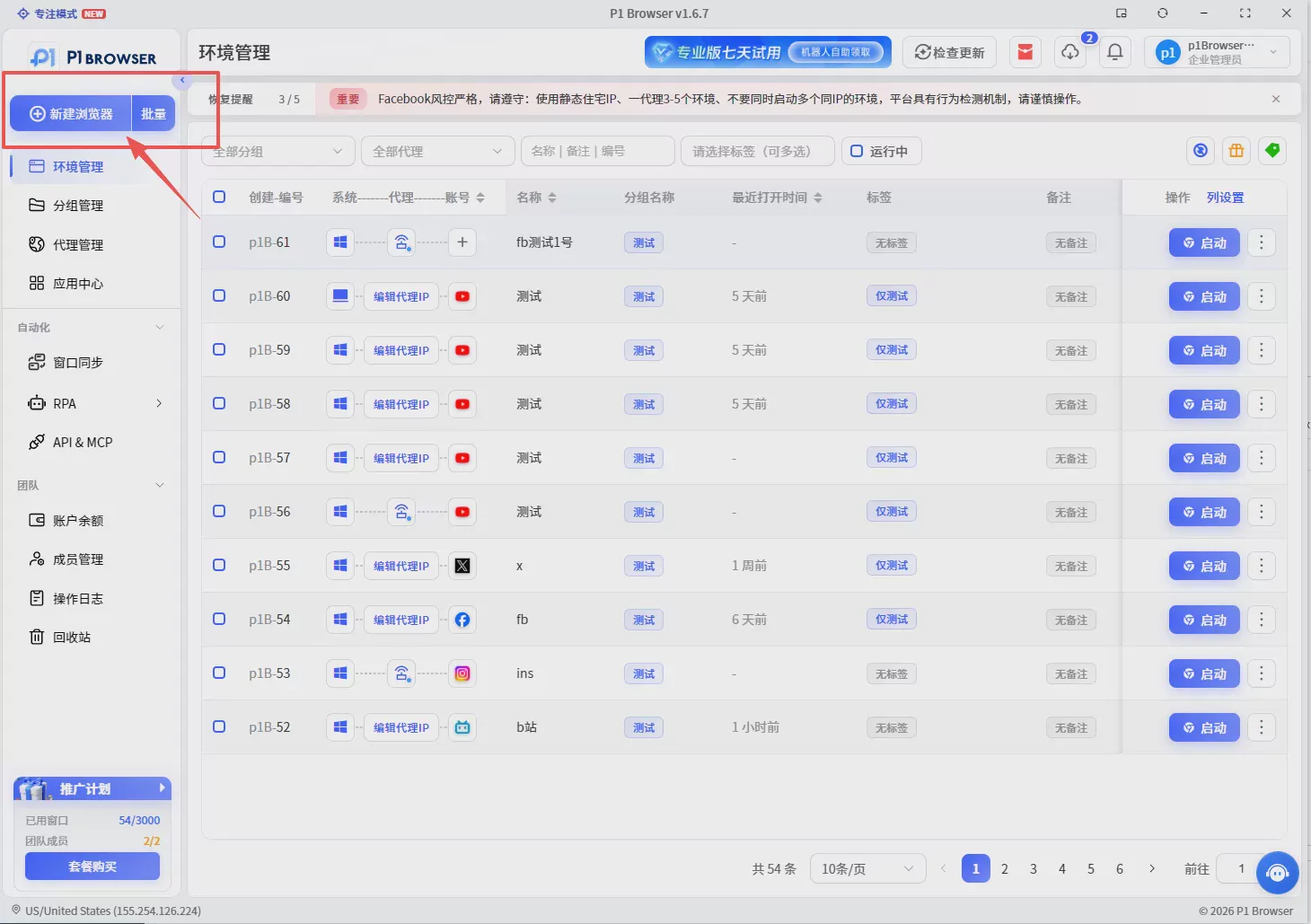
Set Environment Name
It is recommended to name it based on the business scenario, for example:
- Amazon-US-001
- TikTok-UK-001
- Facebook-Ad-001
In addition to the platform name, you can also include region or purpose information. For example, Amazon-US-001 and Amazon-UK-001, so that when you view the environment later, you can quickly identify the region and purpose of the corresponding account.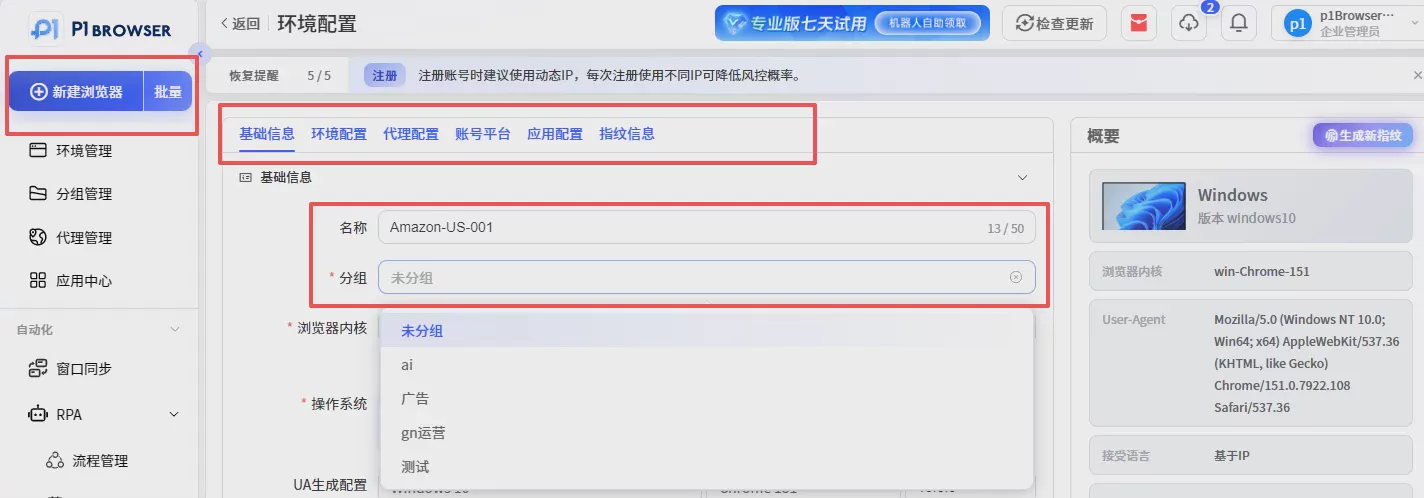
Create Environment Groups
If you need to manage accounts on multiple platforms, you can create groups in advance, for example:
- E-commerce Account Group
- Social Media Account Group
- Advertising Account Group
Managing through groups makes a large number of browser environments clearer and easier to find and maintain later.
P1 runs on the Chromium kernel, and the system automatically manages browser versions, so no additional downloads or installations are required. Once created, it can be used directly.
Step Two: Configure Browser Environment Parameters
After creating an environment, you need to configure the corresponding environment parameters, which together form an independent browser environment.
Operating System
P1 supports multiple system environments such as Windows, macOS, and Linux, and you can choose according to your target business needs. For example:
- If you primarily operate platforms for the Windows user base, you can choose a Windows environment;
- If you need to simulate a Mac device environment, you can choose macOS.
User-Agent
User-Agent contains device information such as browser version and system type. P1 automatically generates matching parameters based on the environment, and in most cases you can keep the default configuration. Unless there is a clear business need, it is not recommended to modify browser parameters frequently.
Cookie Settings
If you have existing accounts that need to be migrated, you can quickly complete environment migration through the Cookie import feature.
Steps: Go to the environment configuration page → find the Cookie settings area → paste the existing Cookie data → save the configuration.
For example: if an account previously always logged in using the Chrome browser and is now migrated to the P1 environment, you can use Cookies to reduce repeated login operations and improve account migration efficiency.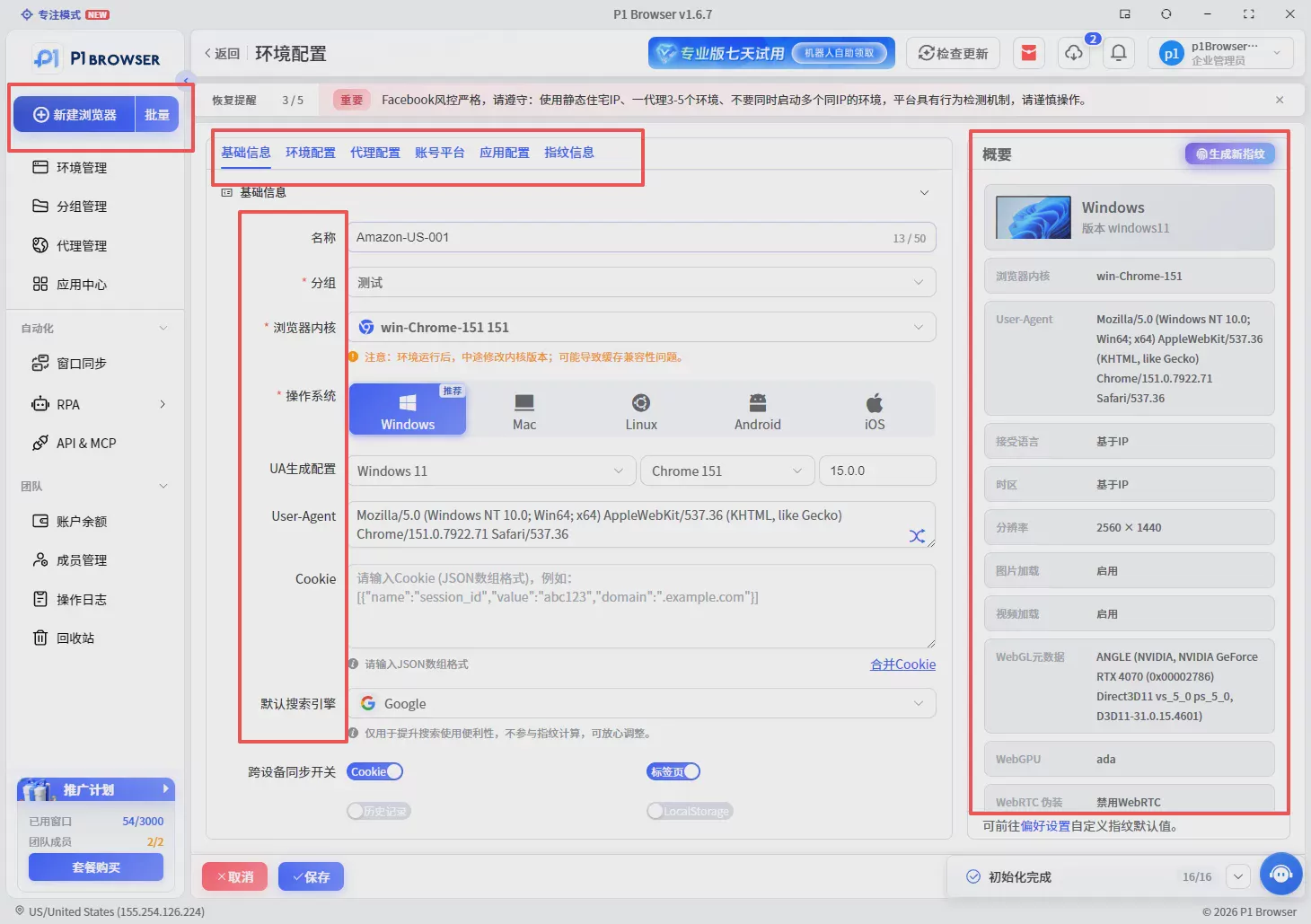
Step Three: Configure Proxy IP
The stability and quality of proxy IPs affect the network environment performance during account access.
When choosing a proxy, it is recommended to pay attention to the IP region, stability, and availability.
In overseas account operations, the network environment is also an important part of the browser environment.
P1 supports two proxy configuration methods.
Use an Existing Proxy
If you have already purchased proxy resources, you can enter the proxy type, IP address, port, username, and password; after completing the configuration, bind it to the corresponding browser environment.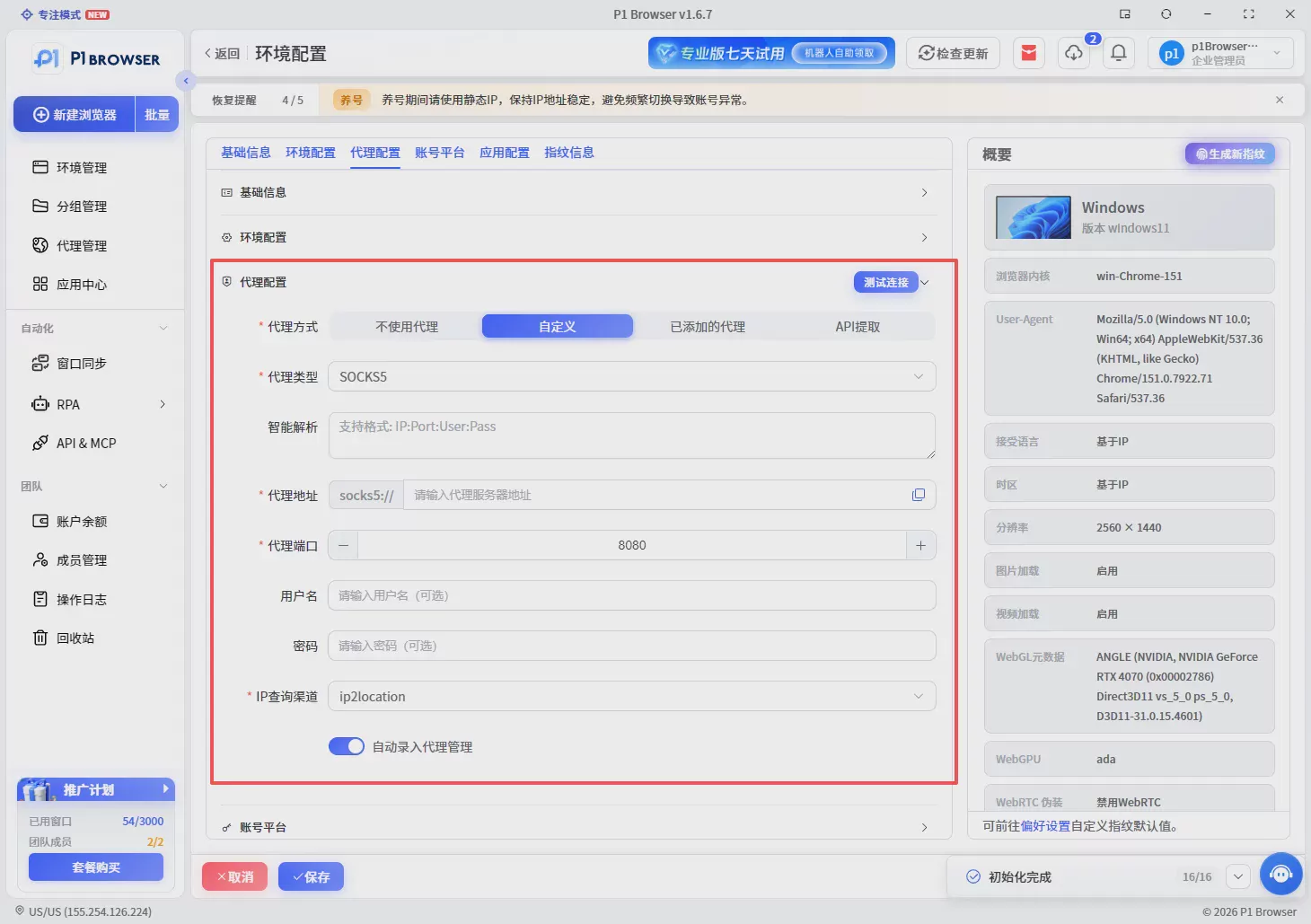
Use P1 Proxy Service
If you do not have proxy resources, you can also select directly through the P1 proxy management page.
P1 has integrated resources from multiple proxy suppliers, covering global proxy and China proxy resources.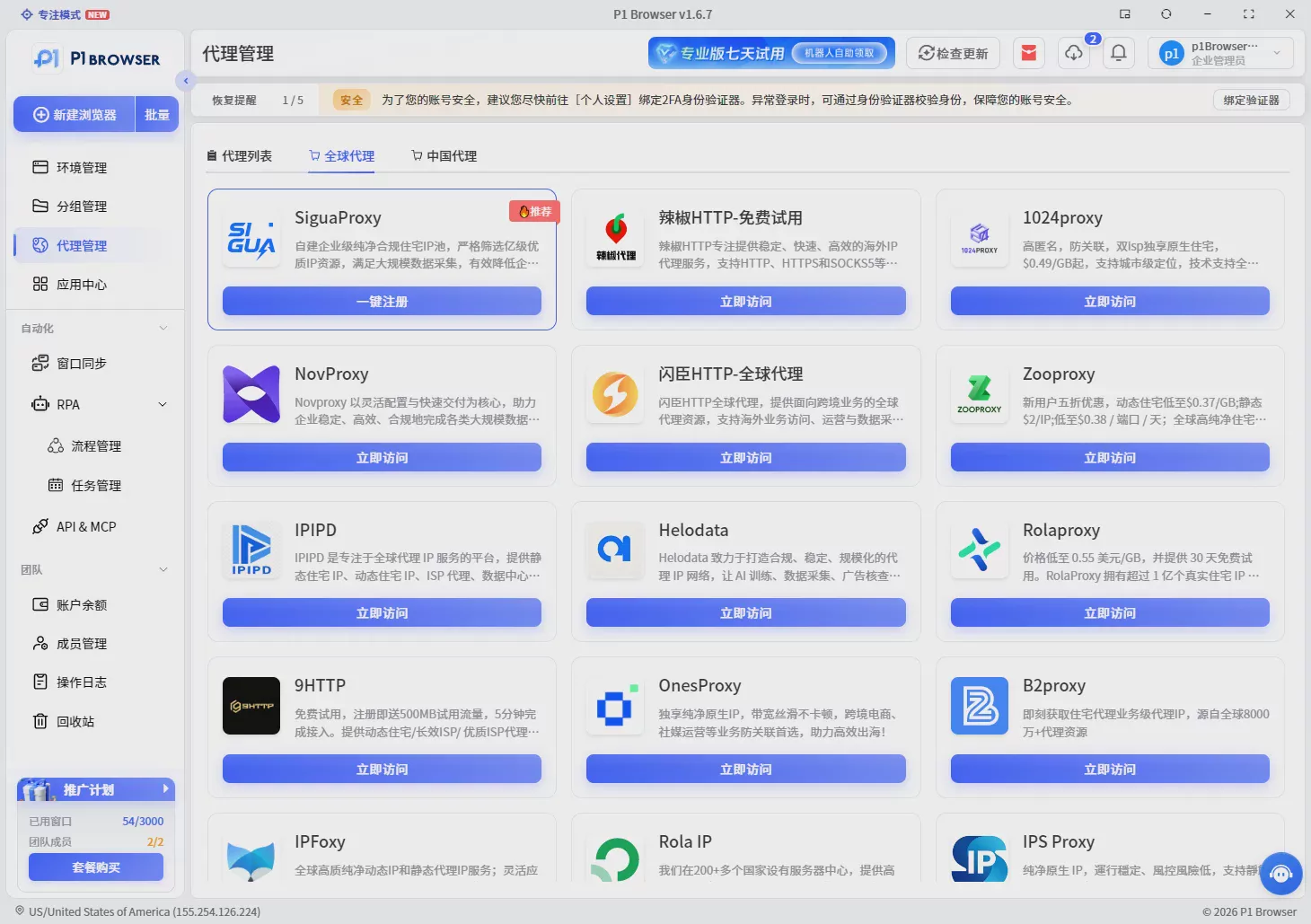
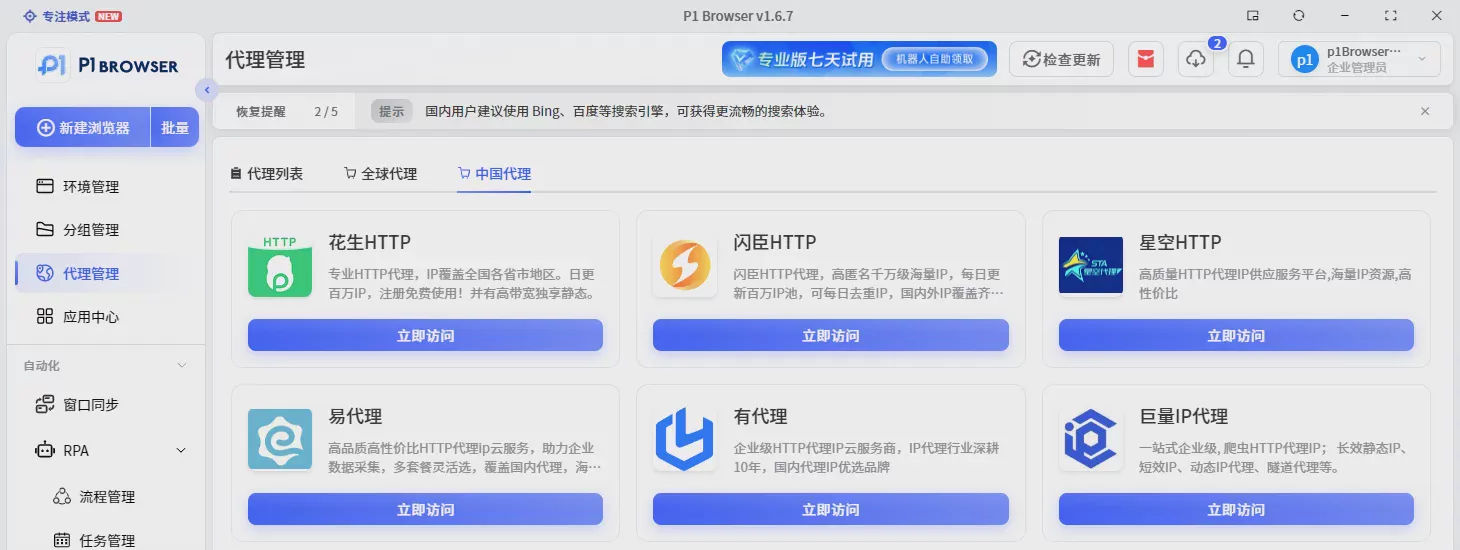
Users can choose proxy resources provided by different suppliers based on their own business needs, including IP services from different regions and of different types.
Manage proxies centrally through P1, eliminating the need to switch between multiple platforms to complete proxy selection, configuration, and usage.
After the purchase is completed, the corresponding proxy information will be automatically synced to the proxy list.
Select the proxy you need to use to quickly complete browser environment configuration.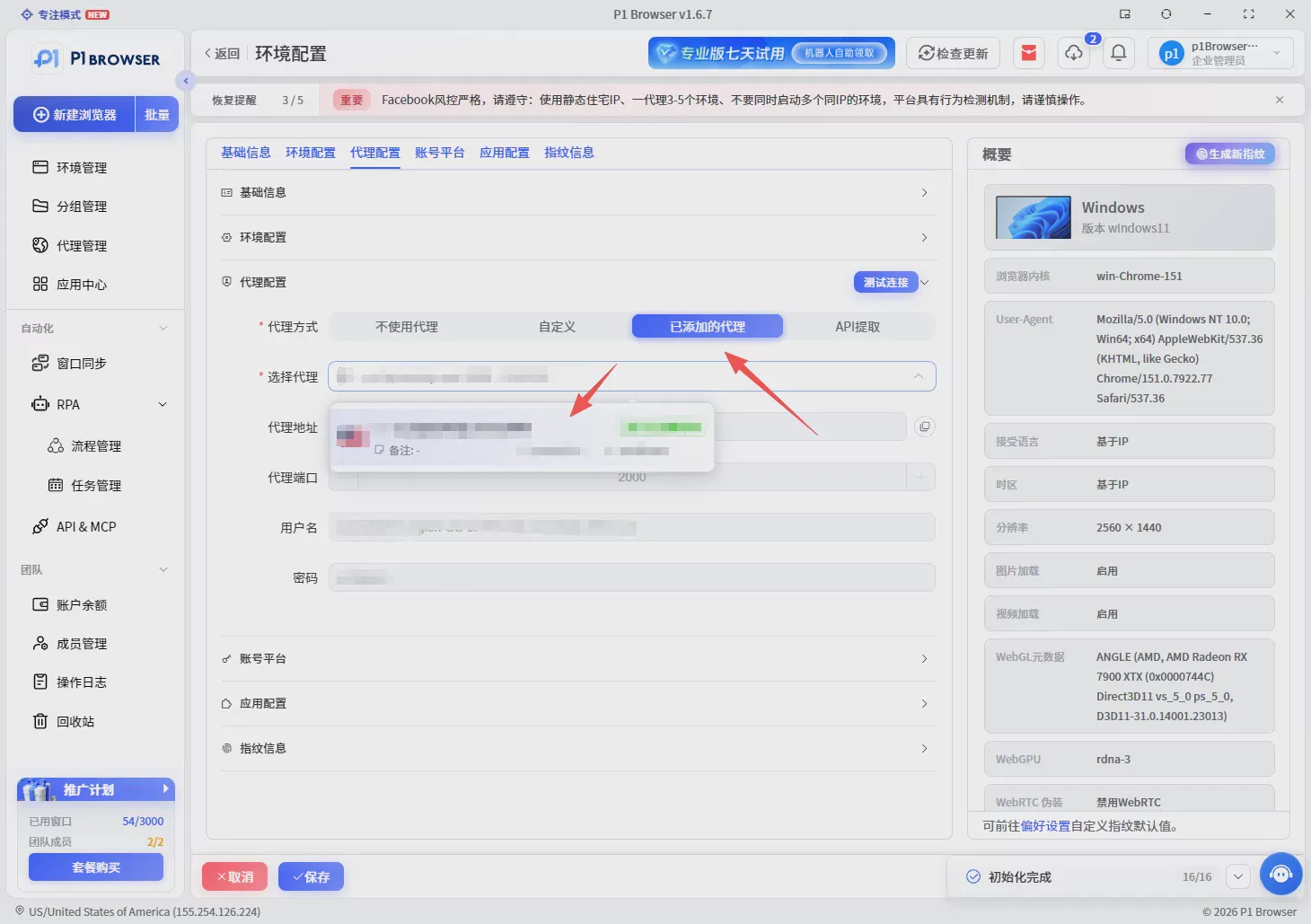
Meanwhile, on the proxy management page, users can also view and manage configured proxy resources in a unified manner, including information such as proxy status and usage.
Step Four: Fingerprint Parameter Settings
P1 provides multiple browser environment parameter settings,
It includes multiple browser environment characteristics such as language, time zone, and fonts. For most users, keeping the default configuration is sufficient.
For the language parameter, users can select it according to the target business region.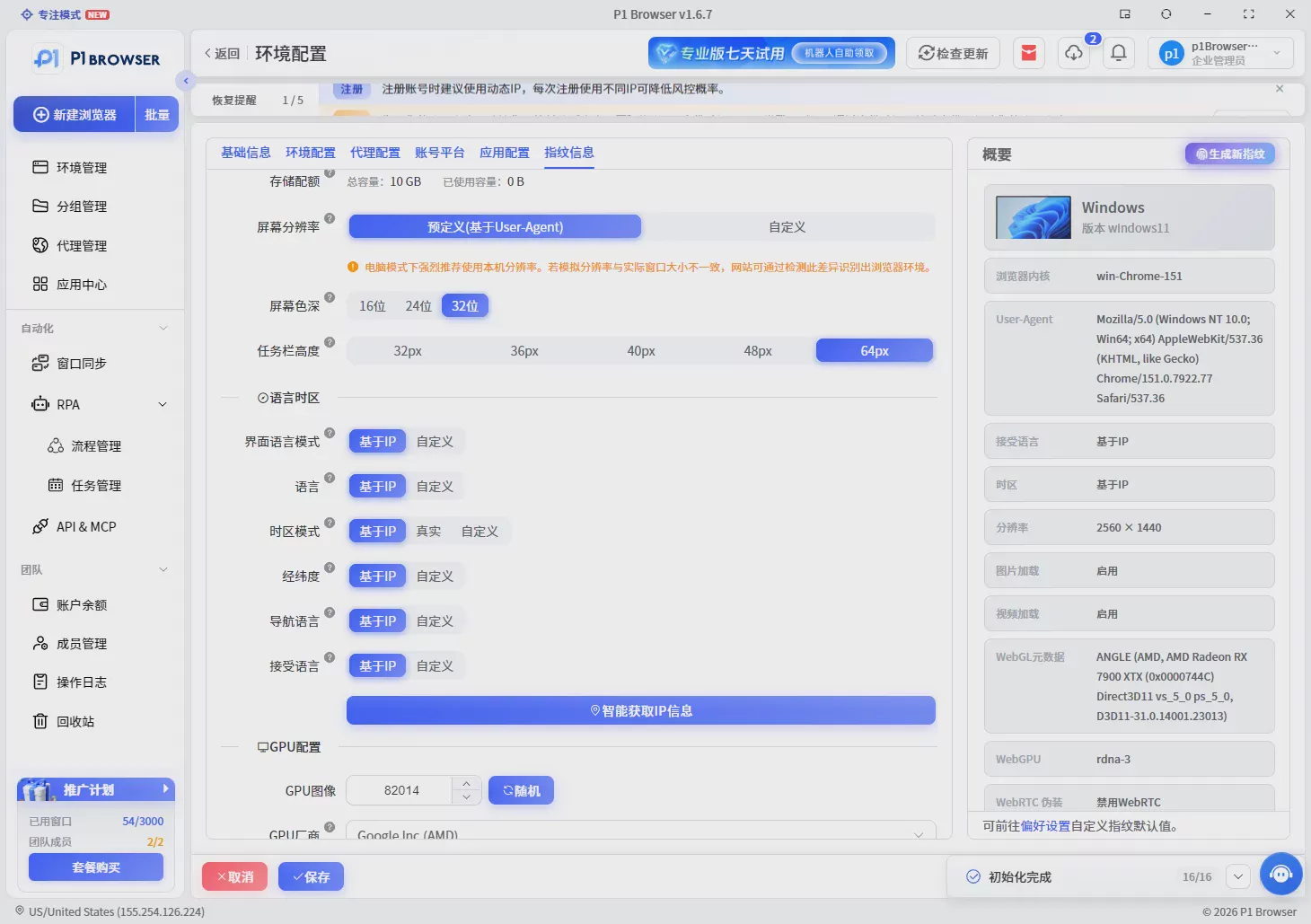
P1 supports hundreds of browser environment language configurations, covering the needs of different countries and regions and helping users create browser environments that better match their target markets.
In this way, a browser environment is created.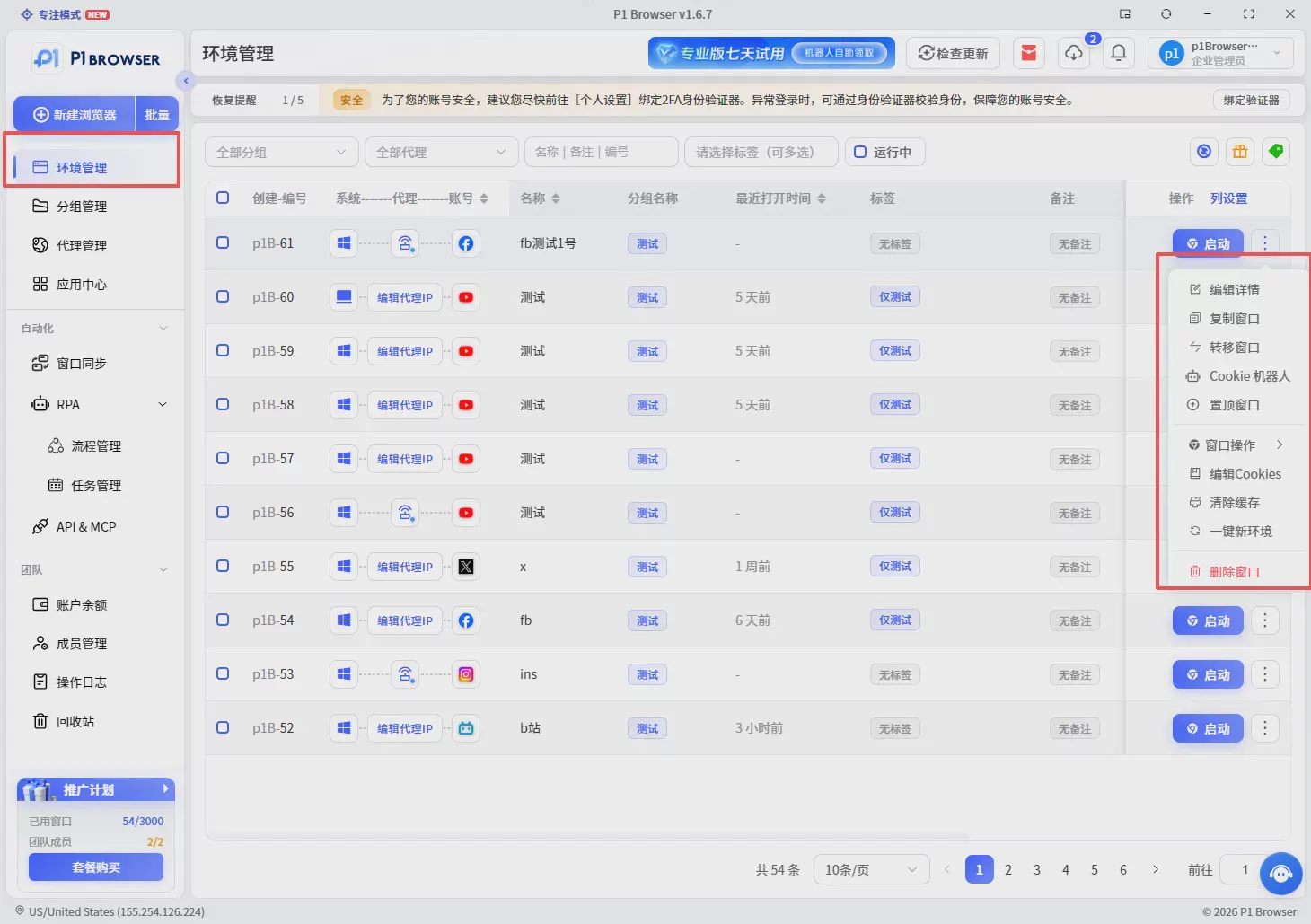
Once created, browser environments can be managed centrally on the Environment Management page.
Users can view environment information, the group it belongs to, and the current status.
At the same time, P1 supports operations such as editing environment configurations, duplicating windows, and transferring windows, making it easy for users to flexibly adjust and manage browser environments according to business needs.
Step Five: Use P1 for multi-account management
After completing the basic configuration, you can use more P1 features to improve account management efficiency.
Window Sync
When you need to operate multiple browser environments at the same time, you can enable Window Sync.
For example: if you operate 5 Amazon stores simultaneously and need to upload the same batch of products to multiple stores, after enabling Window Sync, you only need to complete the operation in one window, and the remaining synchronized windows will perform the same operation.
When opening multiple store backends at the same time, checking orders in batches, or performing repeated page operations, it can reduce the time spent operating one by one and improve management efficiency.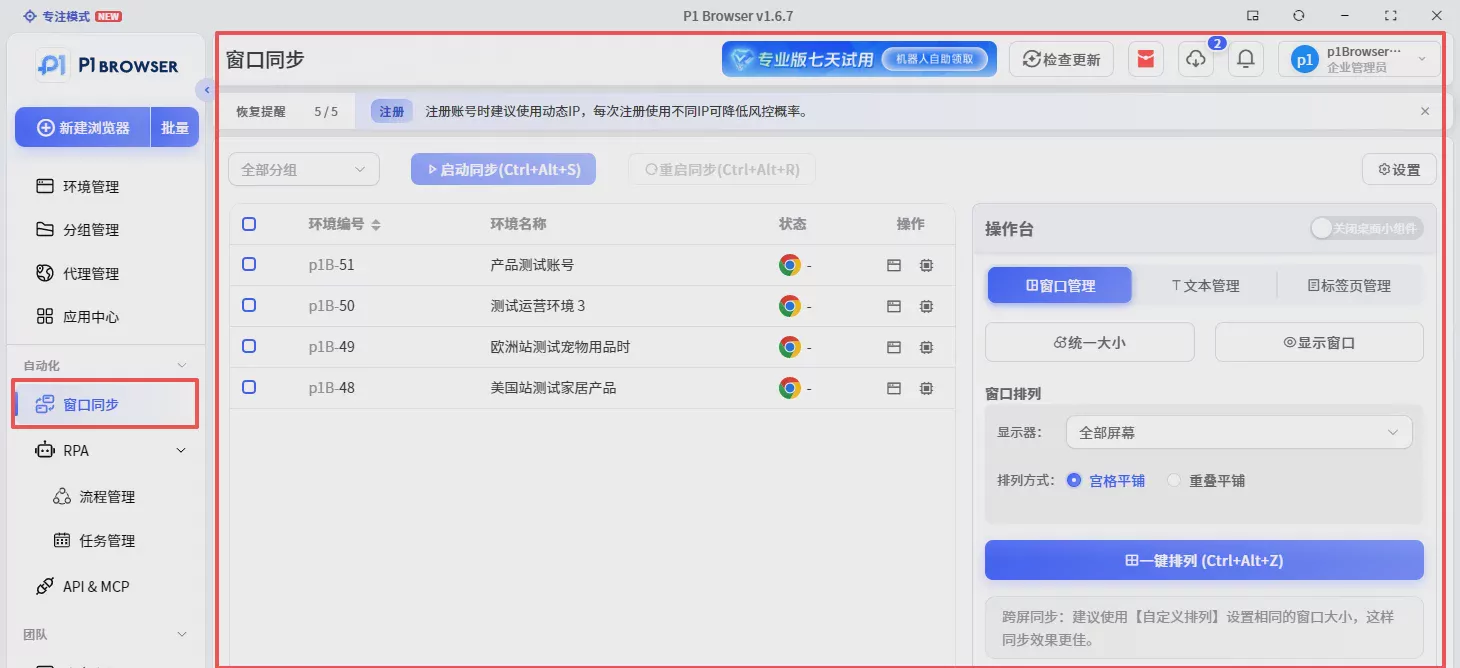
Automation
For repetitive browser tasks, automation features can reduce manual operations.
For example: fixed-process operations, repeated page operations, batch task processing, etc., reducing the cost of repetitive manual operations.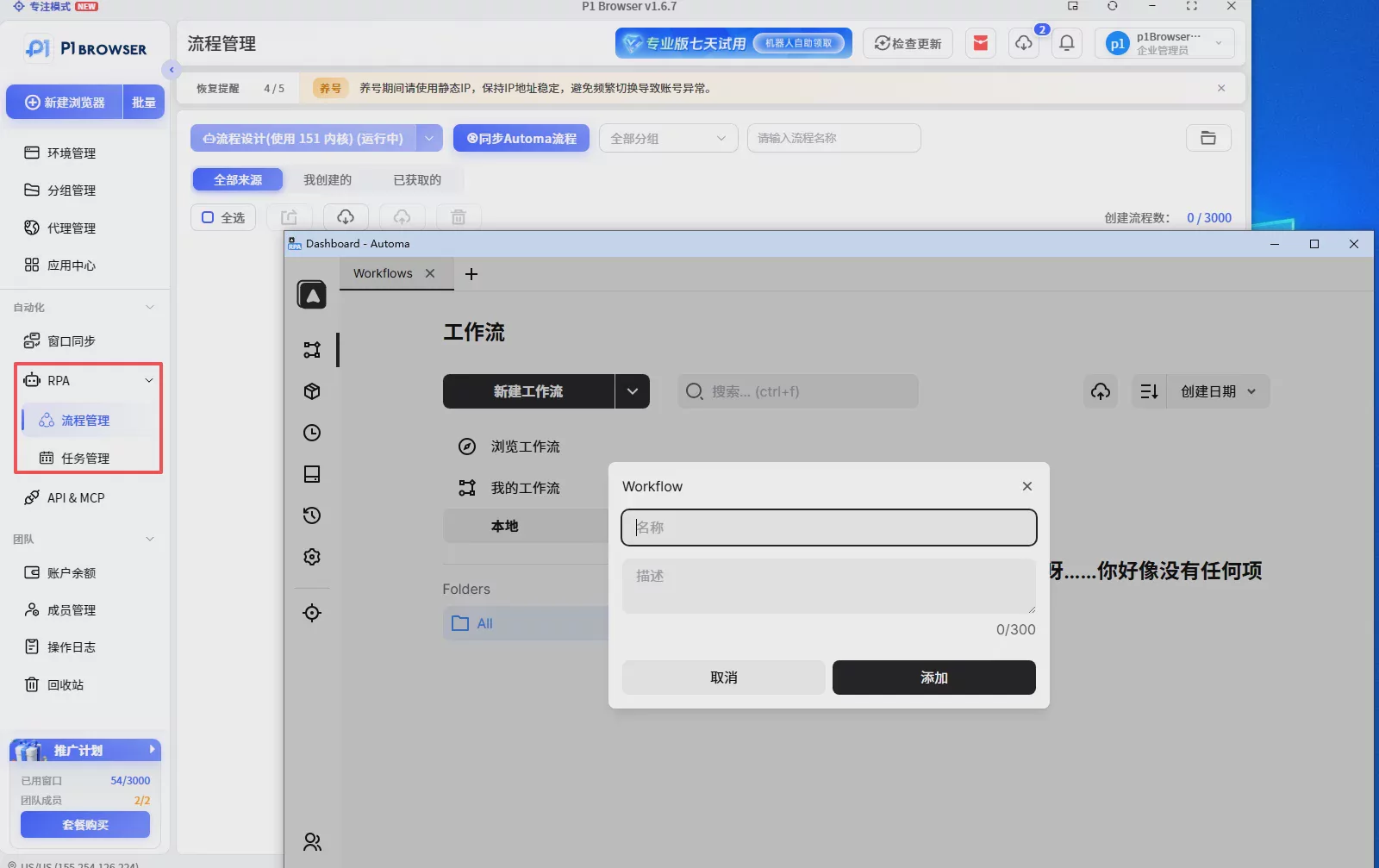
API Interface
If an enterprise team has systematic management needs, it can connect to business systems through the API interface to enable automatic environment creation, batch browser management, automated business processes, and more, meeting more complex operational needs.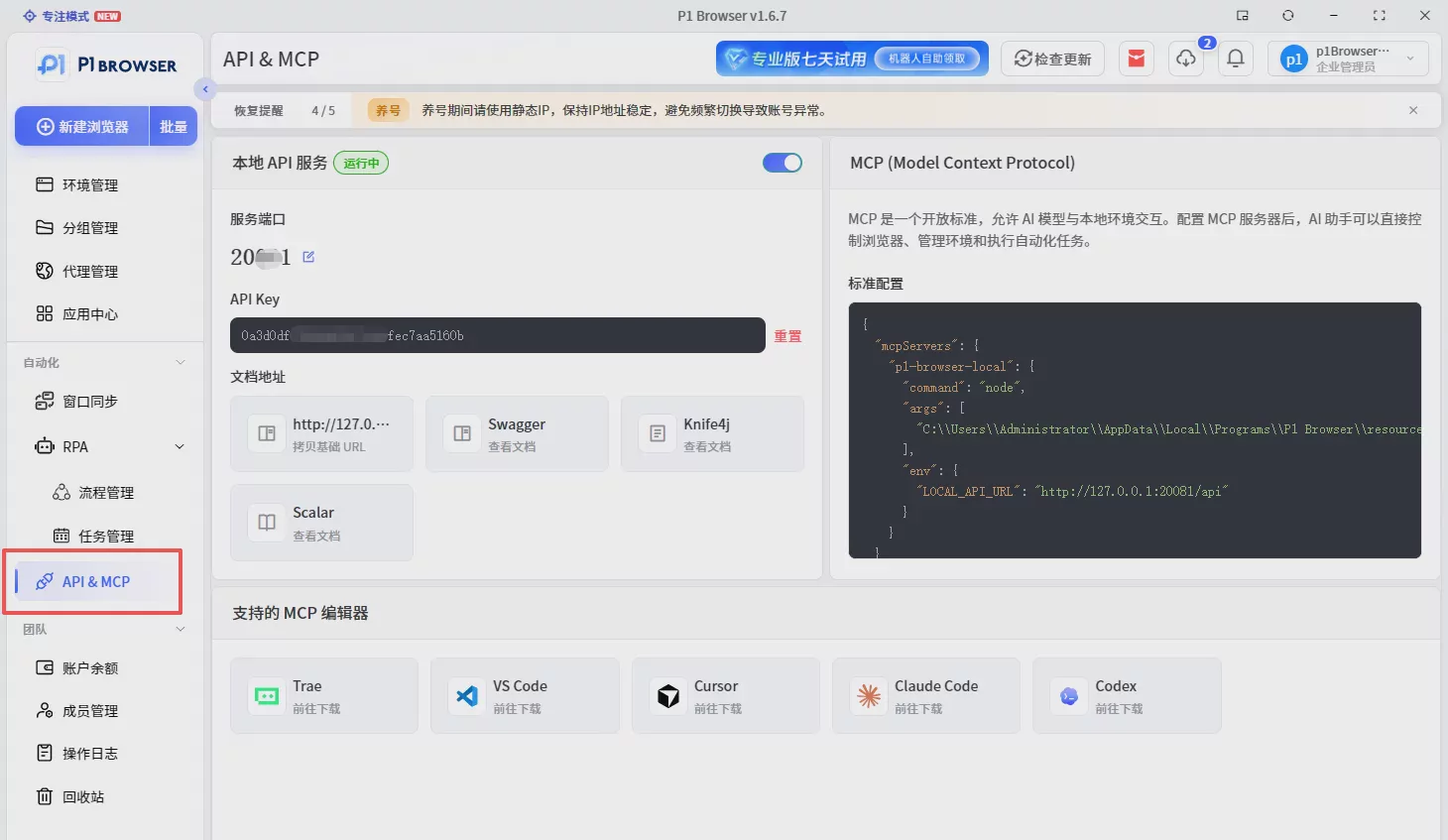
Team Permission Management
When multiple people manage accounts together, permissions can be assigned through the member management feature.
Administrators can:
- Create member accounts
- Set operation permissions
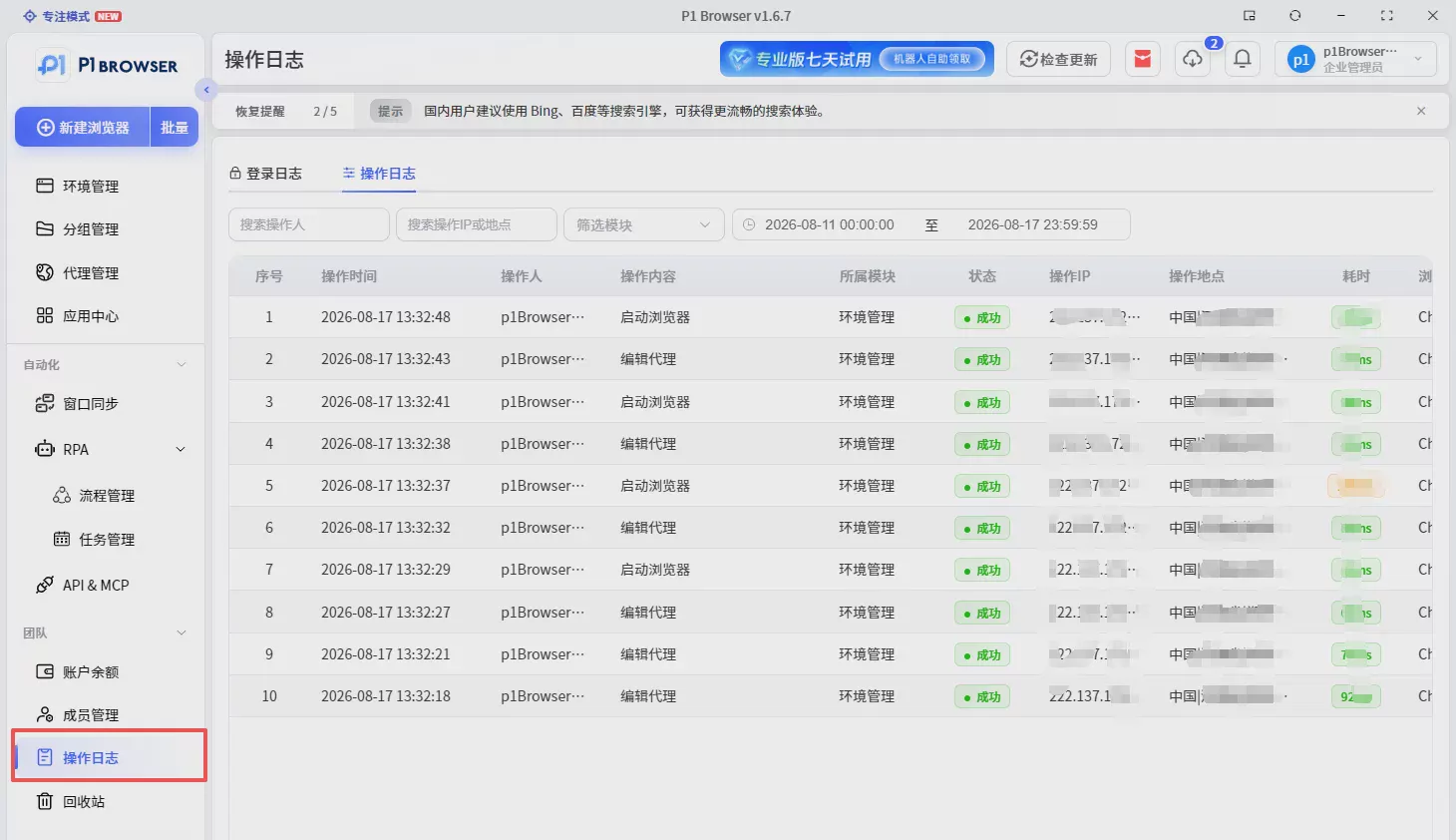
- View operation records
For example: Operators only have account operation permissions, while administrators can centrally manage all account permissions, facilitating team collaboration while reducing account management risks.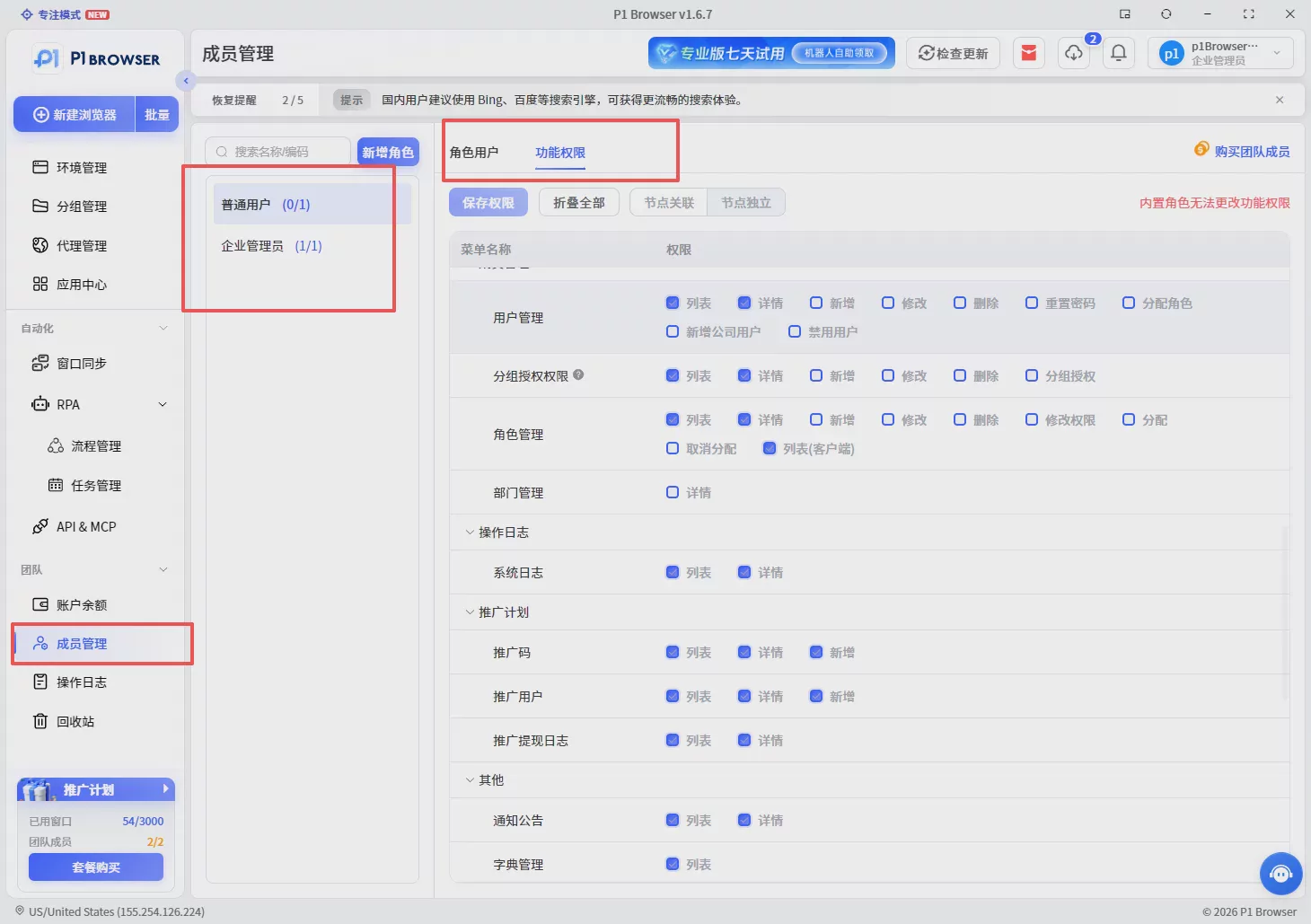
Summary
P1 Fingerprint Browser not only provides browser environment creation features, but more importantly helps users establish stable, independent account operating environments.
Through the 5 steps in this article, you can complete:
- Create independent browser environments
- Configure browser parameters
- Set up proxy IP
- Verify the operating environment
- Manage multiple accounts
For scenarios such as cross-border e-commerce, overseas marketing, and social media operations, a stable browser environment is an important foundation for long-term account operations.
If you are managing multiple overseas platform accounts, you can try P1 Antidetect Browser. Through independent browser environments, proxy configuration, team collaboration, and automation features, P1 helps individual users and enterprise teams manage multi-account operations more efficiently.
Try P1 Antidetect Browser now